Power BI Backgrounds and Icons: Design with PowerPoint
Learn how to design Power BI report backgrounds and custom icons in PowerPoint to create polished, branded dashboards that align with your theme.
Once you’ve established a report template and a custom theme, the next step in building a professional reporting ecosystem is to create template objects — reusable backgrounds and icons. These elements give your reports polish, consistency, and a sense of identity that aligns with your organization’s brand and builds on your report templates and custom theme to complete a cohesive design system.
🎨 Why Use PowerPoint to Design Power BI Backgrounds and Icons
PowerPoint is an underrated design tool for Power BI. It offers:
- Precision control over shapes, alignment, and layering.
- Easy export to high‑resolution PNGs or SVGs.
- Brand alignment by using your corporate color palette and fonts.
- Icon creation without needing Illustrator or Photoshop.
🖼️ Step 1 — Create a Power BI Report Background in PowerPoint
- Open PowerPoint and set the slide size to match Power BI’s canvas (16:9).
- Add header and footer zones for titles, filters, or logos.
- Use brand colors (from your theme JSON) for accents and section dividers.
- Keep it minimal — backgrounds should guide, not distract.
- Export the slide as a PNG and set it as the page background in Power BI.
Contoso Manufacturing Example (Background)
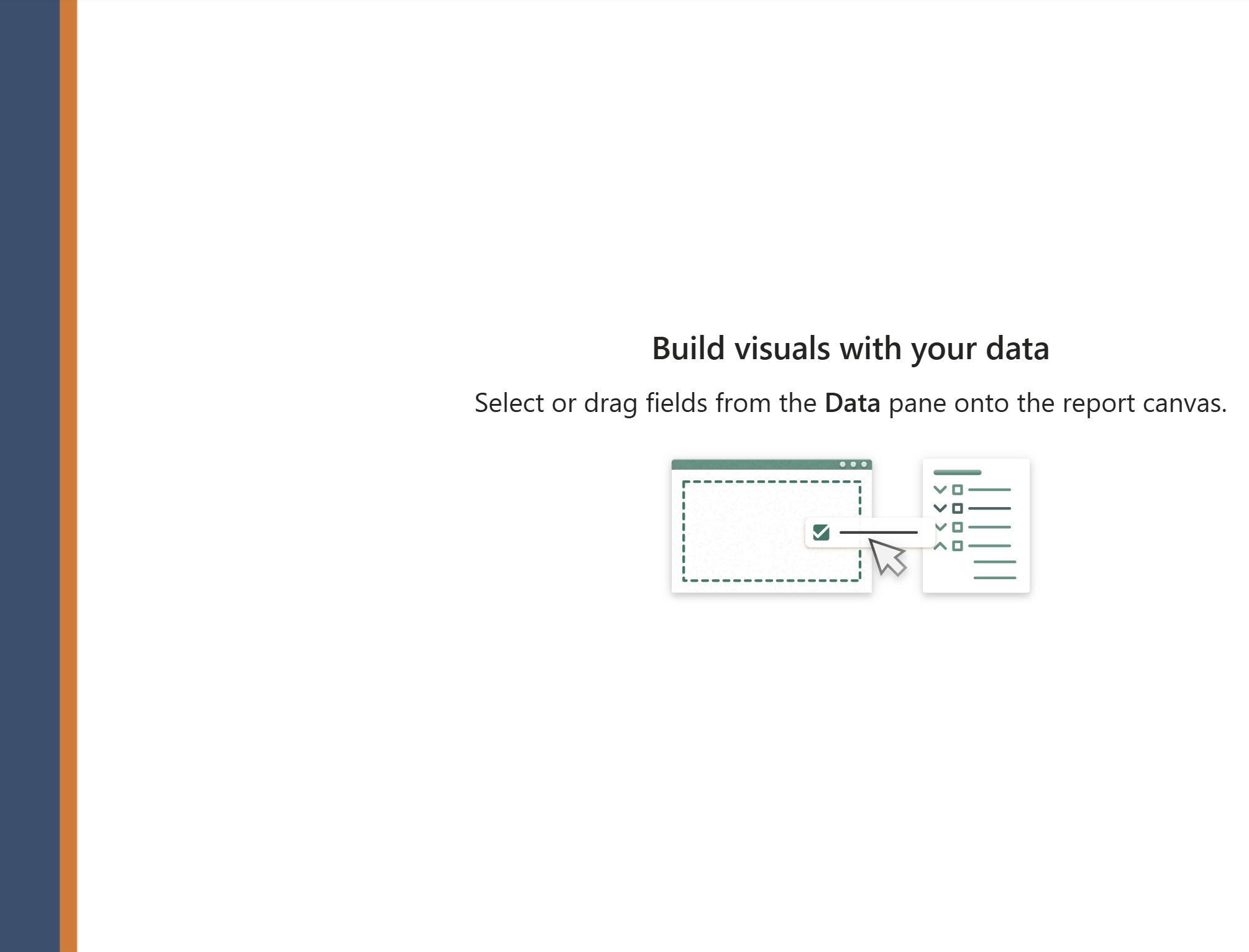
For this example, we’ll design a sidebar to hold navigation buttons. Since each button is 48 px tall, we’ll create a sidebar that’s 60 px wide — large enough for usability without stealing too much canvas space. In PowerPoint:
- Draw a rectangle 0.55 inches wide.
- Add a second rectangle 0.13 inches wide alongside it.
- Fill each shape with contrasting colors from your theme to create a two‑tone sidebar.
- Export the slide as a PNG. In Power BI, open the Format pane → Canvas background, upload your PNG, and set transparency = 0.
🔲 Step 2 — Design Custom Power BI Icons in PowerPoint
Icons are powerful for navigation and storytelling. In PowerPoint:
- Use basic shapes (circles, rectangles, triangles) and combine them.
- Apply brand colors for consistency.
- Export as transparent PNGs or SVGs for crisp scaling.
- Examples: navigation arrows, KPI indicators, section dividers, or status symbols.
Contoso Manufacturing Example (Icons)

For this example, we’ll design navigation icons that fit neatly into the 60 px sidebar. Since our target size in Power BI is 48×48 px, we’ll design larger in PowerPoint for crisp scaling:
- Set up a square canvas about 1.5 in × 1.5 in (≈144×144 px) to design each icon.
- Draw simple shapes (arrows, circles, or status symbols) and combine them into meaningful icons.
- Apply brand colors: use light gray
#E0E0E0or white for default icons, and accent colors like orange#E87722or green#4CAF50for active or status states. - Export each icon as a PNG with transparent background.
- In Power BI, insert the PNG and resize it to 48×48 px so it aligns perfectly within the sidebar.
⚡ Step 3 — Apply Backgrounds and Icons in Power BI
- Import your background into the Page Background property.
- Use icons as buttons for bookmarks, navigation, or tooltips.
- Combine with your custom theme so visuals, colors, and layout all align.
Pairing icons with Power BI Bookmarks allows you to create interactive navigation that feels app‑like.
Contoso Manufacturing Example (Applying Sidebar + Icons)
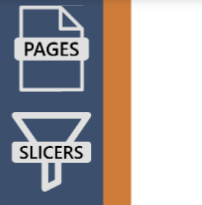
Now that we have both the sidebar background and navigation icons, we can bring them together in Power BI:
- Set the background: In the Format pane → Canvas background, upload the sidebar PNG and set transparency to 0.
- Insert icons: Add your exported PNG icons and resize them to 48×48 px so they align neatly within the 60 px sidebar.
- Position consistently: Place icons in a vertical column, leaving equal spacing between each for a clean, balanced look.
- Assign actions: Turn each icon into a button and link it to a bookmark or page navigation action.
- Test interactivity: Switch between bookmarks to confirm the sidebar feels like an app‑style navigation menu.
This combination of a branded sidebar and consistent icons creates a polished, professional navigation system that feels intuitive and reinforces Contoso Manufacturing’s identity.
✅ Final Thoughts on Power BI Backgrounds and Icons
By designing branded backgrounds and icons in PowerPoint, you extend your visual identity into every corner of Power BI. When combined with templates and themes, these assets elevate dashboards from functional tools into professional, branded experiences that communicate with clarity and consistency.
The result isn’t just a polished report — it’s a repeatable design system your team can rely on, ensuring every new dashboard feels cohesive, intentional, and unmistakably yours.
❓ Frequently Asked Questions about Power BI Backgrounds and Icons
Why design Power BI backgrounds in PowerPoint?
PowerPoint offers precise control over shapes, alignment, and branding, and allows easy export to PNG or SVG formats.
What size should a Power BI background be?
Set your PowerPoint slide to a 16:9 ratio to match Power BI’s default canvas size.
Can I use custom icons in Power BI?
Yes. You can import PNG or SVG icons into Power BI and use them as buttons for bookmarks, navigation, or tooltips.
How do backgrounds and icons improve reports?
They provide visual structure, reinforce branding, and make dashboards feel polished and professional.